Working With [Master Character Creator]
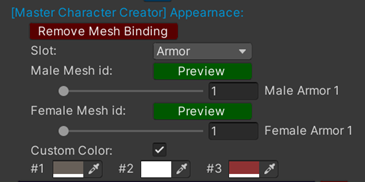
If you have Master Character Creator in your project, Master Inventory Engine will automatically recognize and connect to it. In the Item Setting of the ItemObject, you’ll find a button labeled Create Mesh Binding. Click this button for your equipment item to access the following settings:
-
Slot: Choose the equipment slot for this item.
-
Male Mesh ID: Specify the mesh ID for this item when equipped on a male character. Click the Preview button to see the mesh.
-
Female Mesh ID: Specify the mesh ID for this item when equipped on a female character. Click the Preview button to see the mesh.
-
Custom Color: Toggle this checkbox to customize the colors of the mesh, allowing you to have multiple equipment items with different colors using the same mesh.
You can access the appearance data through Item.equipAppearance. Below is an example script that demonstrates how to update the player's model when the player equips an item:
private void Start(){
      ItemObject.PlayerEquipmentData.RegisterItemChangeCallback(OnEuqipmentItemChang);
}


public void OnEuqipmentItemChange(Dictionary<Item, int> _changedItems){
      foreach (var _item in _changedItems.Keys) {
           if (_changedItems[_item] > 0)
           {
                 Player.Equip(_item.equipAppearance); //Equip
            }else{
                 Player.Unequip(_item.equipAppearance.Type); //Unequip
            }
      }
}