Map Point
MapPoint.cs is a versatile component that integrates a GameObject into the map system and manages its behavior. Any GameObject with a MapPoint component will appear on the Mini Map, World Map, and Navigation Bar based on its position in the game scene.
Map points can be placed manually in the scene or dynamically instantiated at runtime using prefabs. To enable or disable a map point's visibility on the map and navigation bar, use:
<MapPoint>().SetVisible(bool _visible);
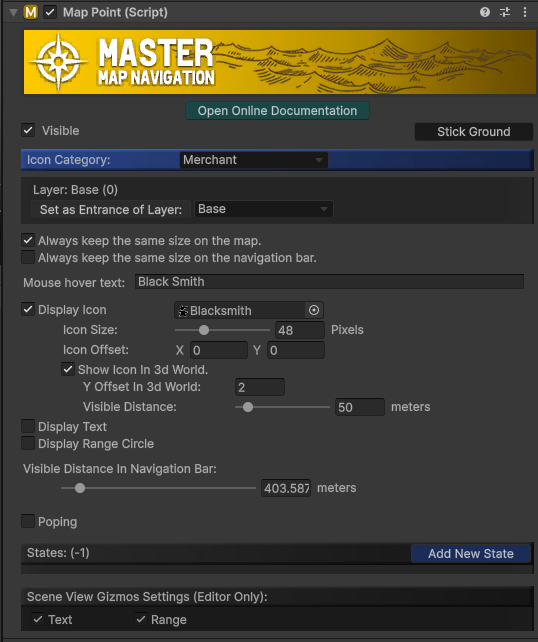
Stick Ground
Click this button to snap the GameObject to the ground level.
Useful when placing land markers to align with the terrain without manually adjusting the height.
Icon Category
Assign the map point to a category set up in the General Settings.
Players can toggle the visibility of different categories in the World Map interface.
Layer
Determines which map layer this point belongs to based on its Y-axis position.
Example:
First floor: height 0–3;
Second floor: height 3–6.
If a map point has a Y position of 3.5, it will belong to the second floor.
Set as Entrance of Layer
Define entrance points for multi-level scenes to enable navigation across layers.
In buildings with multiple floors, the navigation path will lead players to the layer entrance first before navigating to the destination.
Setup:
-
Create a map point.
-
Use the
Set as Entrance of Layerbutton and select the correct target layer from thedropdown.
Always keep the same size on the map
Prevents the map icon from scaling with zoom levels.
This setting overrides the general Lock Icon Scale option in WorldMap Settings and MiniMap Settings.
Mouse Hover Text
Displays a hint text when the player hovers the cursor over the map icon. Leave the text field blank to disable this feature.
Display Icon
Controls the visibility and appearance of the map icon.
Customizable Options: Texture, Color, Size, and Offset.
Related Api:
<MapPoint>().ToggleIcon(bool _enable); //Toggle the icon visibility via script
<MapPoint>().SetIcon(Texture2D _icon);// Set the icon texture via script
<MapPoint>().SetIconColor(Color _color);//Set the icon color via script
<MapPoint>().SetIconSize(int _pixelSize);//Set the icon pixel size via script
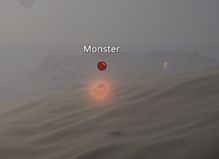
Show Icon in 3d World
if this checkbox is checked, an icon of this map point will be displayed on top of the 3d object like this:
Display Text
Controls the visibility and appearance of the map text.
Customizable Options: Content, Color, Font Size, and Offset.
Option to display the text on the Mini Map or Navigation Bar.
Related Api:
<MapPoint>().Toggletext (bool _enable); //Toggle the text visibility via script
<MapPoint>().SetText(string _text);// Set the text content via script
<MapPoint>().SetTextColor (Color _color);//Set the text color via script
<MapPoint>().SetTextSize (int _fontSize);//Set the text font size via script
Display Range Circle
Displays a circular range around the map point with customizable radius and color.
Useful for marking areas, such as quest regions or item drop zones.
Related Api:
<MapPoint>(). ToggleRange (bool _enable); //Toggle the range visibility via script
<MapPoint>(). SetRangeRadius (float _radius); //set the radius of the range via script
States
Displays state icons (e.g., quest status or attention marks) on the top-right corner of the map icon.
Related Api:
<MapPoint>().State = x ; //When set state as -1 will hide the state icon.
Popping
Makes the icon pop on the map to attract the player’s attention.
Related Api:
<MapPoint>().SetPoping(bool _enable);