Navigation Path
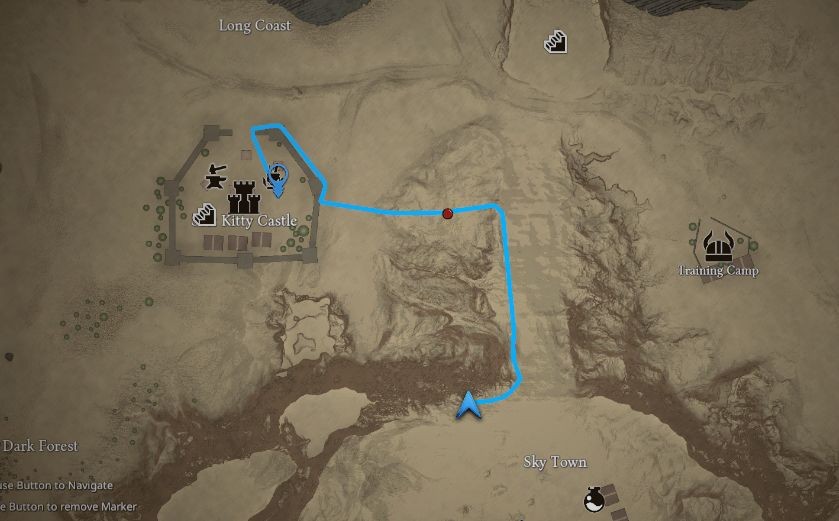
The Navigation Path module allows players to click on the map and automatically generate a path to the selected destination.
The path is calculated using Unity’s NavMesh system and is displayed on both:
- World Map
- Mini Map
The path dynamically updates as the player moves, guiding them until the destination is reached.
Features
- Click-to-navigate on map
- Real-time path updating
- Works on both World Map and Mini Map
- Fully integrated with Unity NavMesh
- Simple API for manual control
Setup
1. Enable Navigation Path
Go to:
Project Settings > SoftKitty > Map Navigation > World Map Settings
Enable: Enable Navigation Path
2. Configure Input
Set which mouse button starts navigation: Start Navigation Button
Example:
Left Click→ common for RTS-style gamesRight Click→ common for RPG/MMO
3. Setup NavMesh (Required)
The Navigation Path system relies on Unity’s NavMesh to calculate paths.
Bake the Unity NavMesh for your scene:
-
For older Unity versions: Access the baking panel from
Window > AI > Navigation, then use the Bake panel.
Then use
Bakepanel to do the baking.
-
For newer Unity versions: Use the
NavMesh SurfaceandNavMesh Modifiercomponents. Refer to Unity’s documentation for details: https://docs.unity3d.com/Packages/com.unity.ai.navigation@2.0/manual/CreateNavMesh.html
Customize Path Appearance
The navigation line uses a material:
Assets/SoftKitty/MapNavigationSystem/Materials/Map/NavigationLine.mat
The navigation visual prefab:
Assets/SoftKitty/MapNavigationSystem/Resources/MapNavigationSystem/NavigationPath.prefab
You can customize:
- Tint Color → change path color
- Texture → create different visual styles (dashed, glowing, etc.)
- Prefab → change the icon of the destination.
How It Works
- Player clicks on the map
- System converts click position → world position
- NavMesh calculates the path
- Path is rendered on the map
- Path updates as the player moves
- Navigation stops when destination is reached
API Reference
Navigation can be controlled programmatically via [MapManager].
Start Navigation
public static void NavigateToHere(Vector3 _worldPos)
Creates a navigation path from the player’s current position to a target world position.
- _worldPos → destination in world space
Example:
MapManager.NavigateToHere(targetPosition);
Stop Navigation
public static void StopNavigation()
Stops navigation and clears the current path.
Example:
MapManager.StopNavigation();
Performance Notes
- Path calculation uses Unity NavMesh (very efficient)
- Path updates are lightweight and suitable for real-time usage
- Avoid triggering navigation repeatedly every frame